

A faster internet plan may not make your business internet faster. If cloud apps lag, video calls freeze or file transfers crawl, the bottleneck could be your Wi-Fi, router or office network rather than the connection coming into your premises. Knowing how to improve business internet speed starts with finding where performance is dropping before you spend money on an upgrade.
Slow internet can interrupt work, especially when it’s unclear whether the issue affects one device, the whole office or the internet service itself. A plan change may help, but it won’t fix weak Wi-Fi coverage, ageing equipment or several bandwidth-heavy tasks competing for capacity.
This practical Australian guide walks you through checks to pinpoint the cause, from comparing a wired speed test with Wi-Fi performance to reviewing network use and equipment. You’ll learn which fixes can improve performance across the office, what connection limits to look for, and when to review your NBN, fibre or 5G options. The aim is to make decisions based on evidence, not guesswork.
Key Takeaways
- Learn how to improve business internet speed by testing methodically and comparing wired results with Wi-Fi performance.
- Understand what download speed, upload speed, latency and packet loss reveal about your connection.
- Match practical fixes to your test results instead of changing settings or equipment without a clear reason.
- Recognise when repeated wired tests point to a need to review your NBN, fibre or 5G connection.
- Turn your findings into a short improvement plan, then retest to see whether each change makes a difference.
How to improve business internet speed starts with finding the bottleneck
Cloud files take ages to load, video calls break up and routine work starts to drag. It’s tempting to upgrade your internet plan straight away, but that may not solve the problem. Slow performance can come from the incoming connection, the office network, Wi-Fi coverage or an individual device. To learn how to improve business internet speed, first work out which part is holding things back.
Business internet performance depends on both connection speed and network quality, not just the number on your plan. A plan’s advertised speed describes the service, but staff experience also depends on how the connection is shared and delivered around the workplace. A fast service can still feel sluggish on a device with weak Wi-Fi, while a wired connection may work well even if wireless coverage is patchy.
What does business internet speed actually measure?
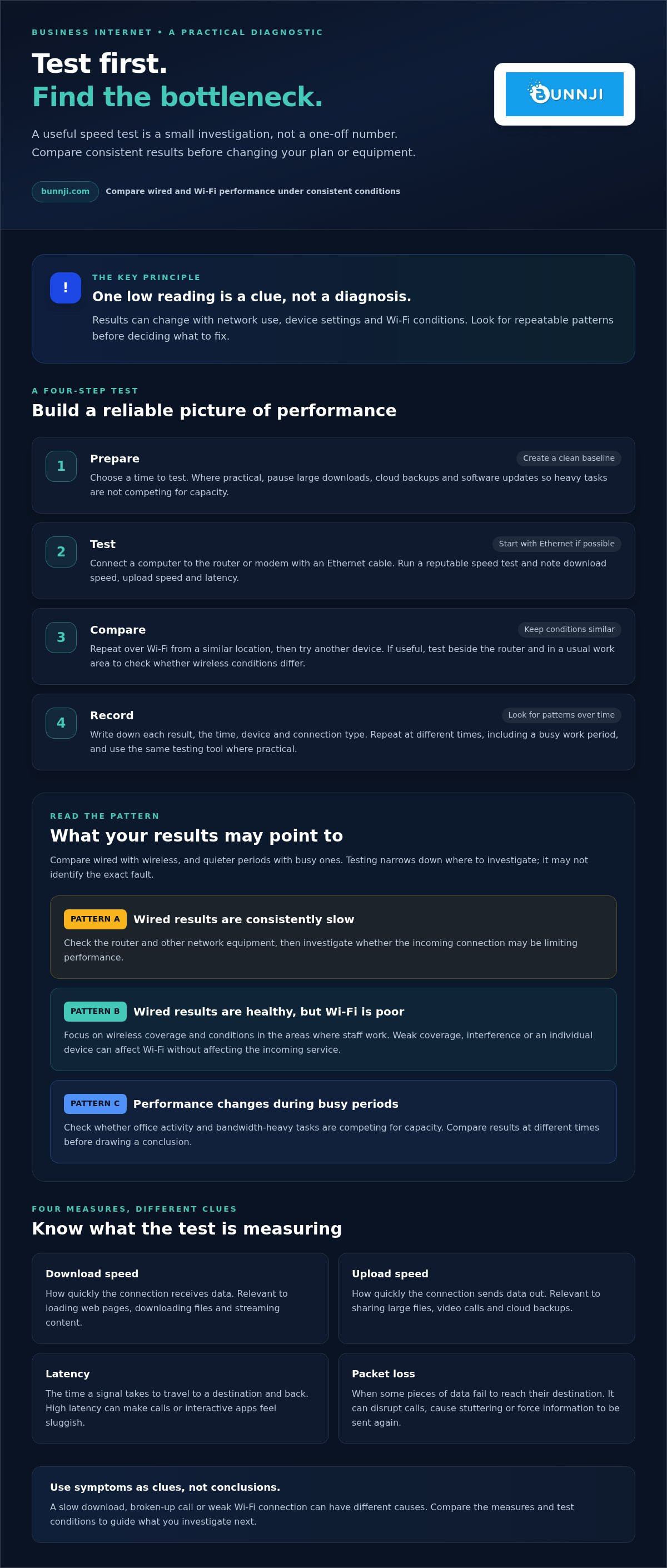
Speed tests report several measures. Each can help explain a different kind of slowdown:
- Download speed is how quickly your connection receives data. It affects loading web pages, downloading files and streaming content.
- Upload speed is how quickly it sends data out. It matters when staff share large files, join video calls or run cloud backups.
- Latency is the time a signal takes to travel to a destination and back. It measures response delay, not the amount of data your connection can carry. High latency can make calls or interactive apps feel sluggish, even when a speed test shows plenty of bandwidth.
- Packet loss happens when some pieces of data fail to reach their destination. It can disrupt calls, cause stuttering or force information to be sent again.
These measures are related, but they aren’t interchangeable. A large download may be slow because there isn’t enough download capacity, while a video call can suffer from poor uploads, high latency or packet loss. The symptom is a clue, not a diagnosis.
Is slow Wi-Fi the same as slow internet?
No. Wi-Fi is the wireless link between a device and your office network. The internet connection is the service linking that network to the wider internet. Weak coverage, interference or a problem with one device can slow Wi-Fi without affecting the incoming service.
Compare performance in different places and on different devices. If a laptop struggles in a meeting room but a computer connected by Ethernet remains responsive, the issue is more likely to be Wi-Fi or that laptop. If wired and wireless devices slow down together, the cause may be further upstream, although network equipment or heavy office use can also affect them.
This distinction matters for internet-dependent calls. If cloud phone calls sound broken on Wi-Fi but work normally over a wired connection, changing the internet plan may miss the cause. For more on how connectivity supports business calling, see the business VoIP strategy guide.
Use these clues to narrow down the bottleneck before choosing a fix. Next, test the connection consistently and compare wired and Wi-Fi results.
How to test business internet speed and isolate the cause
A useful speed test is a small investigation, not a one-off number. A single speed test is a snapshot, not a reliable diagnosis of your business internet. Results can change with network use, device settings and Wi-Fi conditions, so look for repeatable patterns before deciding how to improve business internet speed.
Use this four-step process to build a clearer picture:
- Prepare. Choose a time to test and pause large downloads, cloud backups and software updates where practical. This gives you a baseline without heavy tasks competing for capacity.
- Test. Connect a computer to the router or modem with Ethernet, if possible. Run a reputable speed test and note download speed, upload speed and latency.
- Compare. Repeat the test over Wi-Fi from a similar location, then try another device. Keep the conditions consistent so differences are easier to interpret.
- Record. Write down the results, time, device and connection type. Repeat at different times, including a busy work period, to see whether performance changes with office activity.
How should you run a useful office speed test?
For a clean baseline, use a wired device connected directly to your router or modem where possible. Close unnecessary apps and pause bandwidth-heavy tasks first. Run the same test over Wi-Fi from a similar spot, such as beside the router, then from the usual work area. This helps show whether distance or wireless conditions are affecting the result.
Record each reading alongside the device used, whether it was wired or wireless, and the time of day. A test result without those details is difficult to compare later. Use the same speed-testing tool for each round where practical, so it’s easier to track changes in your results.
What do different test results tell you?
Compare patterns rather than treating one low reading as proof of a particular fault. The difference between wired and wireless results, and between quiet and busy periods, helps narrow down where to investigate next.
- Wired results are consistently slow: Check the router and other network equipment, then investigate whether the incoming connection may be limiting performance. Testing alone may not identify which one is responsible.
- Wired results are healthy but Wi-Fi is poor: Focus on wireless coverage and conditions in the areas where staff work. A strong result beside the router and a weaker one elsewhere points to a local Wi-Fi issue.
- Results dip at busy times: Record when the drops occur and what the office is doing, such as running backups or sharing large files. A repeated pattern gives you better evidence before considering a connection change.
Once you have several readings, you can choose a practical next step instead of guessing. If the evidence points to a network or connection issue, Bunnji’s business connectivity and network services can help distinguish local performance problems from service limitations.
Practical ways to improve business internet speed without changing plans
Once you have a clue where the slowdown occurs, fix that bottleneck first. Applying every Wi-Fi tweak or replacing equipment without a diagnosis can waste effort. The right fix depends on your hardware, office layout and current service. Use your test results to choose one change, then test again under similar conditions to see whether it helped.
For example, if a device performs well near the router but poorly at a desk further away, focus on wireless coverage. If several people notice slowdowns during video calls while large files are downloading or backups are running, competing network use may be contributing. Address the likely cause rather than making changes for their own sake.
How can you improve office Wi-Fi coverage?
Start with router placement. Put it in a central, open position, away from avoidable obstructions such as enclosed cabinets or large objects. Compare a Wi-Fi test near the router with one in the usual work area. If performance drops in a particular part of the office, the signal may not be reaching it effectively.
For stationary computers, printers or other devices that need a consistent connection, Ethernet can avoid reliance on Wi-Fi. If coverage varies across the workplace, review access point placement rather than assuming a faster internet plan will fix a weak wireless link. The best arrangement depends on the building and network equipment.
- Test before and after a placement change. Keep the device and test conditions similar so you can compare results fairly.
- Use a wired connection where practical. This can help separate wireless performance from the rest of the network.
- Look for uneven coverage. A strong result in one work area and a weak result in another points to a local coverage issue.
Which devices and network settings should you check?
Network equipment can affect the experience across the office. If performance is inconsistent, restart the router or other equipment according to the manufacturer’s guidance. Check for available updates and follow the manufacturer’s instructions before applying them. Avoid changing several settings at once. Make one change, then retest so you can identify what made a difference.
Also check what devices are doing in the background. Cloud syncing, large file transfers and software downloads can all use network capacity. A video call may become less stable if several staff are on calls while backups or downloads run at the same time. Where practical, schedule large transfers for quieter periods or avoid unnecessary downloads alongside work that needs a responsive connection.
Some network equipment supports traffic prioritisation, which can give selected business-critical applications preference when the network is busy. Use this only if your equipment provides suitable controls and you understand which traffic they affect. It won’t add capacity to the connection, and may not help if the underlying issue is Wi-Fi coverage, ageing equipment or a service limitation. These targeted steps are a practical starting point for how to improve business internet speed without changing plans, but results depend on your setup.
When should a business review its NBN, fibre or 5G connection?
A connection review makes sense when slow performance persists after you’ve ruled out obvious Wi-Fi and device issues. Look for a pattern, not one disappointing result. Repeated tests from multiple wired devices at different times can help show whether performance is limited beyond the wireless network. Compare the results with the service details available to your business, including expected download and upload speeds.
How can you tell the connection may be the limiting factor?
Record when slowdowns occur, which applications are affected and whether the issue appears across wired devices. If several computers struggle during the same busy periods, note what else is happening, such as cloud backups or video meetings. This evidence helps separate a possible service limitation from local network congestion and gives you a clearer basis for deciding what to review.
Before considering a change, ask:
- Do repeated wired tests show a similar slowdown across more than one device?
- Are the results below the service details available to your business?
- Do slowdowns recur at busy times, and do they affect particular applications?
If the evidence points to a connection issue, consider whether a different connection type better fits your work. Availability and suitability depend on the premises and business requirements, so no option is automatically best for every workplace.
Could a different connection type suit the workload better?
NBN can suit businesses whose service availability and performance meet their needs. Fibre may be worth reviewing where the business needs a different capacity or connection profile. 5G can be another option where it’s suitable for the premises and the way the business operates. Compare the actual service options available, rather than relying on the connection label alone.
Consider the work your team does. Cloud backups and shared files send data out, so upload performance matters. Video meetings and cloud communications also rely on a stable connection and responsive network, not just a high download figure. Teams using AI-powered voice tools can explore how connectivity supports cloud communications in this AI voice agents guide.
Use your test evidence and workload to guide the connection review:
- Repeated wired results are poor: Review the service and equipment along the path to the internet.
- Upload-heavy work is affected: Compare available upload performance against backups, file sharing and meeting needs.
- Busy periods cause recurring problems: Use your recorded pattern to assess capacity and connection suitability.
This is a sounder way to decide how to improve business internet speed than upgrading based on a hunch. Bunnji’s business connectivity reviews can help distinguish network issues from connection limitations and assess NBN, fibre or 5G options against your requirements. See Bunnji’s business connectivity services.
Keep business internet speed reliable with a review and improvement plan
Once you’ve tested the connection and tried targeted fixes, keep a simple record of what changed and what happened next. This turns troubleshooting into an ongoing process rather than a string of guesses. Assign someone to own the actions and set a review date so results aren’t lost when workloads or office equipment change.
What should a simple business speed improvement plan include?
Start with a baseline: record wired and Wi-Fi performance in key work areas, along with the date, time, device and any recurring symptoms. Then list the suspected issue, the action to try, who is responsible and when you’ll check the result. A short, clear plan is easier to follow than a long list of untested tweaks.
Make one change at a time and keep the before-and-after results. If you move an access point, for example, retest the same work areas under similar conditions. This helps show whether the adjustment made a difference or whether the slowdown remains. Set a periodic review, and revisit the baseline after changes to equipment, staffing or the way the business uses cloud services.
A useful action list might include:
- Issue: which work area, device or task is affected.
- Action and owner: the specific change and the person responsible for it.
- Review date: when to retest and compare the outcome.
How can a connectivity review help resolve persistent slowdowns?
If the problem continues, bring your recorded results together with details of the work affected. Comparing wired and Wi-Fi performance, busy periods and application symptoms can help distinguish a local network issue from a limitation in the incoming service. A review can then consider NBN, fibre or 5G options against your usage patterns, including demand for uploads, cloud applications and video meetings.
Keep speed and continuity as separate goals. A faster or more suitable connection may help with everyday performance, depending on the service and network. Redundancy serves a different purpose: it provides an alternative connection path if the primary service becomes unavailable. It supports business continuity during an outage, but it doesn’t automatically improve the speed of your normal connection.
Bunnji’s telecommunications audits, connectivity options and networking support can help assess the evidence and shape an improvement plan around your business. That gives you a clearer basis for deciding whether to focus on Wi-Fi, network performance, the connection itself or outage protection.
Make your next connectivity decision with confidence
Reliable internet performance isn’t a one-off fix. As your team, tools and workload change, the right setup may change too. Keep a clear record of what your business needs from its connection, so future decisions reflect the way people actually work, not a speed figure in isolation.
That’s the practical answer to how to improve business internet speed: understand the business impact, use evidence to guide the next step, and revisit the setup when that impact changes. You don’t need to chase the biggest number. You need a connection and network that support the work your team depends on.
To turn your findings into a tailored plan, book a business connectivity review with Bunnji. A considered next step can help your team work with greater confidence and keep pace as your business evolves.
Frequently Asked Questions
What is a good internet speed for a small business in Australia?
There’s no single speed that suits every small business. The right capacity depends on how many people work online at once and what they’re doing. A team mainly using email and web apps has different demands from one regularly uploading large design files or running video meetings. List your busiest simultaneous tasks, then assess whether your current service supports them without disrupting essential work.
Can a new router make business internet faster?
Yes, if the existing router is limiting performance, but it won’t increase the capacity of your internet service. A newer, suitable router may handle your devices or wireless coverage more effectively. Before replacing it, note whether slowdowns affect wired connections as well as Wi-Fi. If only wireless devices struggle, router placement or coverage may be the issue. If all devices do, investigate further before buying equipment.
Why is my business internet slow at certain times of day?
Performance can dip when more staff and devices are active at once, or when scheduled tasks such as cloud synchronisation and software updates run. A slowdown that regularly appears during a particular work period may point to a recurring demand pattern. Note which applications are affected and what tasks are running. If the issue occurs outside busy periods too, workload alone may not explain it.
Does a VPN slow down business internet?
A VPN can reduce connection performance, but the impact varies. Encryption, the route traffic takes through the VPN server and the device’s processing capacity can all play a part. Compare the same task with the VPN connected and disconnected, following your organisation’s security rules. If only VPN traffic is slow, the VPN route or configuration may be relevant. Don’t disable it for sensitive work without approval.
Can too many devices slow down business Wi-Fi?
Yes. Each active device can add demand, particularly if it’s streaming, syncing files or downloading updates. The number of connected devices alone doesn’t tell the whole story: a phone checking email uses the network differently from a computer transferring large files. Review which devices are active during slow periods, including printers, meeting-room equipment and guest devices, to identify unexpected demand.
Does a faster NBN plan always improve business Wi-Fi?
No. A higher-capacity NBN plan may help if the internet service is the constraint, but it won’t necessarily improve the wireless signal between the router and a device. For example, a laptop with poor Wi-Fi coverage may remain slow after a plan change. Check whether the issue affects wired devices too, and consider your router and office coverage before deciding that more plan capacity is the answer.
Can slow internet affect business VoIP calls?
Yes. A constrained or unstable connection can contribute to calls that sound delayed, break up or drop, especially when other work is competing for network capacity. The cause could also be Wi-Fi coverage, network equipment or the device used for calling. Compare call quality on a wired connection and during quieter periods. This can help identify whether the issue relates to the connection or the local network.


